Before you check: label the connection
First decide which connection you want to inspect: a particular Wi-Fi network, mobile data, or a VPN running over either one. Turn off automatic switching if it makes the phone move between networks during the check. Record the network name or type and whether the VPN is active.
This context prevents the most common mistake: comparing a public address captured on mobile data with a private address captured later on Wi-Fi and assuming one tool is wrong.
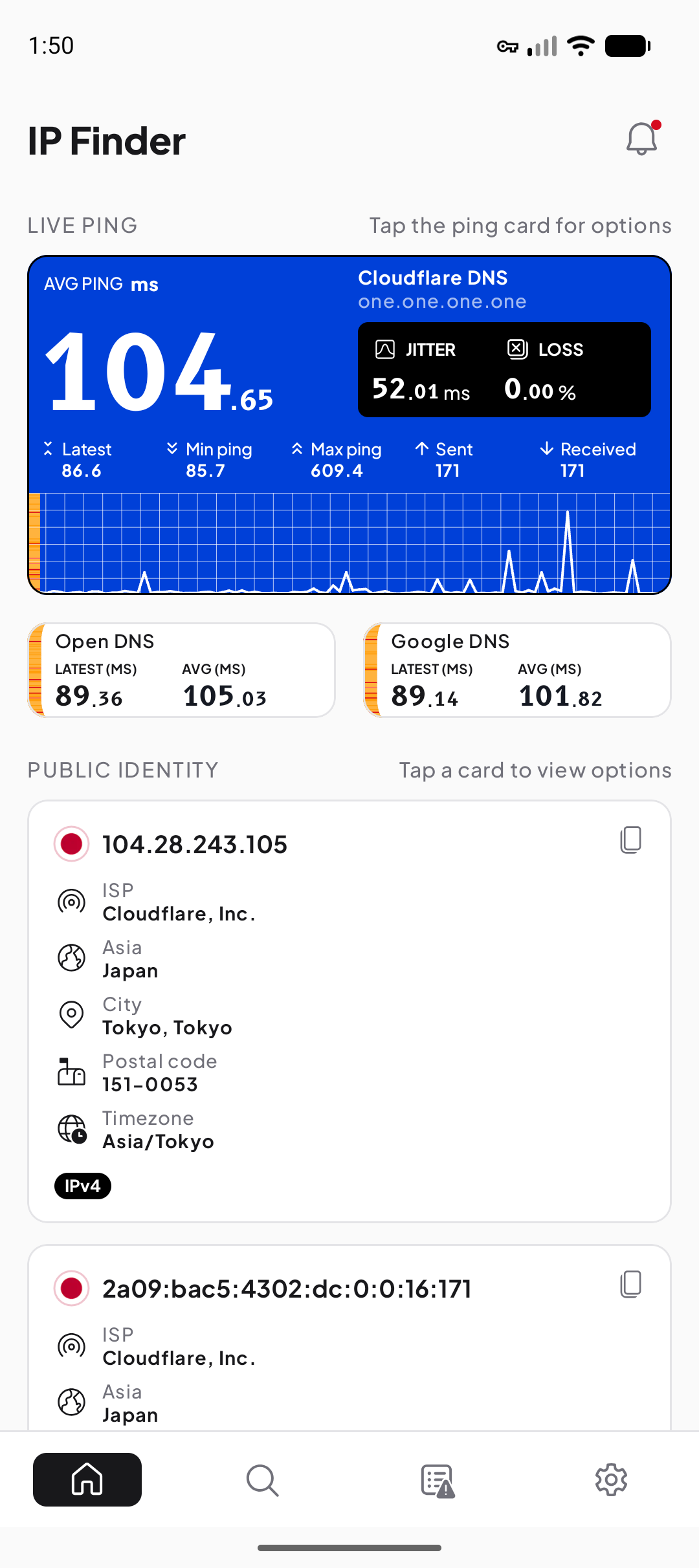
Find the public IPv4 or IPv6 address
- Keep the intended connection active
Confirm Wi-Fi, mobile data, and VPN state before opening the checker.
- Use a public-IP service
Open a reputable web checker or IP Finder. The result is the source address observed for that test path.
- Record the address family
Label each value as public IPv4 or public IPv6. One network can provide both.
- Record the network context
Keep the time, provider or organization label, and approximate country if you plan to compare later.
Refresh only after the connection has settled. If IPv4 and IPv6 are tested separately, one can change or fail while the other remains available, especially across VPN and mobile configurations.
Continue with Public vs private IP addresses, compare it with IPv4 vs IPv6: what changes?, or use IP Finder for Android for the next practical step.
Find the private address in Android Wi-Fi settings
Open Android Settings, open Network & internet or Connections, select Internet or Wi-Fi, then open the details for the currently connected network. Names differ by Android release and manufacturer; look for labels such as IP address, gateway, subnet mask or prefix length, and DNS.
The displayed IPv4 address often belongs to an RFC 1918 private range. Android may also show one or more IPv6 addresses. A link-local IPv6 address serves the local link, while other IPv6 addresses can have broader scope. Copy the label with the value instead of calling every item simply “my IP.”
The protocol details in this guide follow Android connectivity documentation and IANA — Number Resources; use those primary specifications when you need exact terminology or edge-case behavior.
Why public and private values differ
The private Wi-Fi address identifies the phone inside the nearby network. When IPv4 traffic leaves, the router commonly translates the connection to a public source. The website or public-IP service sees that outward-facing source, not the private value in Android settings.
A mobile carrier can use another translation layer, and a VPN can present an exit-server address. The result is a chain of valid addresses at different points, not one “real” address and several false ones.
Wi-Fi, mobile data, and VPN comparison
| Connection | Local details | Public result |
|---|---|---|
| Home Wi-Fi | Address and gateway from the home network | Home ISP or upstream gateway |
| Mobile data | Carrier-managed values; fewer fields may be visible | Mobile carrier or shared gateway |
| VPN over Wi-Fi | Underlying Wi-Fi still exists; VPN adds a virtual path | VPN exit for covered traffic |
| VPN over mobile | Carrier path under the tunnel | VPN exit for covered traffic |
Exact behavior varies with IPv4, IPv6, split tunneling, and the provider. Treat the table as a model for labeling observations, not a promise about every network.
If you cannot find or explain a value
- Verify that the settings page belongs to the currently connected Wi-Fi, not a saved network.
- Look for an advanced, details, or network-information section; menu names vary by manufacturer.
- Capture the label and address family along with the value.
- Reconnect once and note whether the address or gateway changes.
- Compare with another device on the same Wi-Fi if you are troubleshooting local configuration.
- For a VPN comparison, repeat public IPv4, public IPv6, and DNS checks rather than relying on one combined result.
Do not publish or send your addresses unnecessarily. A private address is not globally unique, but network details can still reveal context about your setup. Share only what a trusted support channel needs.