IP Finder
What is my IP? Understand your public IP
A web IP checker is being built and is not active yet. Until it is ready, this page explains public IP addresses and IP Finder provides network checks on Android.
Public IP checker is in development
We are building a web checker that will show the public IP used to reach this site. It is not available yet, so this page does not inspect or display your current address.
Until it is ready, you can check the active connection in the IP Finder Android app.
The address a website sees is only one part of your connection
A public IP is the source address that an internet service can associate with your current connection. It may belong to your home router, a mobile carrier gateway, an office network, or a VPN exit server. If several devices share that connection, they can appear under the same public IPv4 address.
A private IP answers a different question: how is this phone, laptop, or TV addressed inside the nearby network? On home Wi-Fi it commonly comes from the router. It can be reused in millions of unrelated private networks because it is not routed as an ordinary public internet address.
| Value | What it describes | Where you usually see it |
|---|---|---|
| Public IP | The internet-facing source for this path | A public-IP service or IP Finder |
| Private IP | The device inside the current local network | Android Wi-Fi details or the router |
Use the measurement that matches your question
Network tools are most useful when you begin with a specific question. Public-IP details help confirm which internet-facing path is active. DNS observations help compare the resolver path you expected. Ping, jitter, and packet loss describe different aspects of delivery to a chosen target. Local details help diagnose the first hop between the device and its network.
The cards below describe what IP Finder can observe on Android. A result should always be kept with its context: Wi-Fi or mobile data, VPN state, test target, and time. Without that context, two correct measurements can look as though they disagree.
Public IP
IPv4/IPv6, ISP and approximate location
DNS
Resolvers observed during a test
Connection quality
Ping, jitter and packet loss
Wi-Fi & LAN
Available local network details
IP lookup
Look up another public address
Understand the result before acting on it
An IP address is a routing identifier, not a permanent name for a person. An IP-based city is an estimate, not a GPS reading. IPv4 and IPv6 can work side by side, and a phone can hold several valid addresses at once.
These guides start with the everyday explanation, then show the protocol details and limits behind it. Use them when a result changes after switching Wi-Fi, mobile data, or a VPN—and when you need to decide whether that change is expected.
Check the connection that is active on your Android device
A web page can describe the public request that reached its server, but it cannot expose every network value available to Android. IP Finder brings the related views together: public IPv4 and IPv6, network organization and approximate IP location, observed DNS resolvers, connection-quality probes, and available Wi-Fi or LAN details.
For a meaningful comparison, keep one variable at a time. Record the result on Wi-Fi, then switch to mobile data and repeat. Or record a baseline without a VPN, connect the VPN, and repeat without changing the underlying network. This makes the cause of a difference much easier to identify.
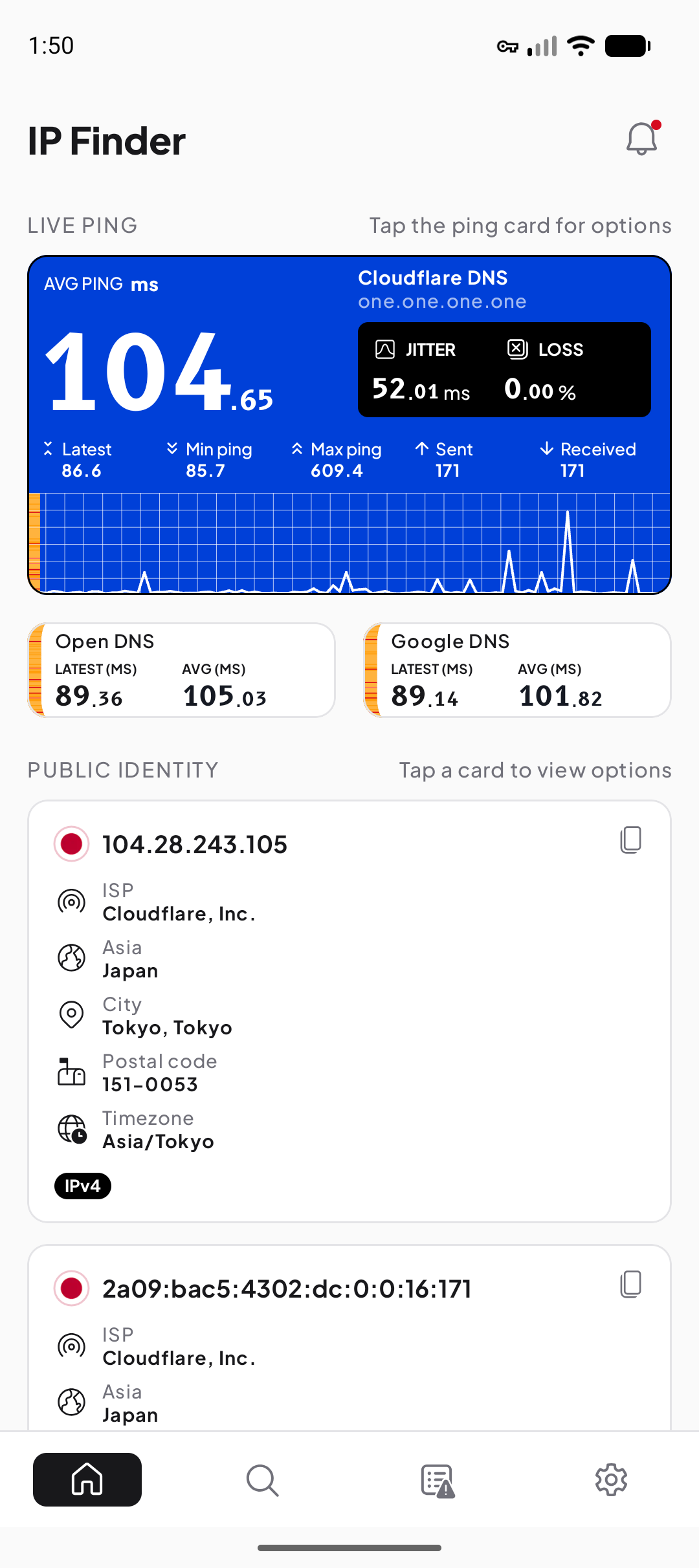
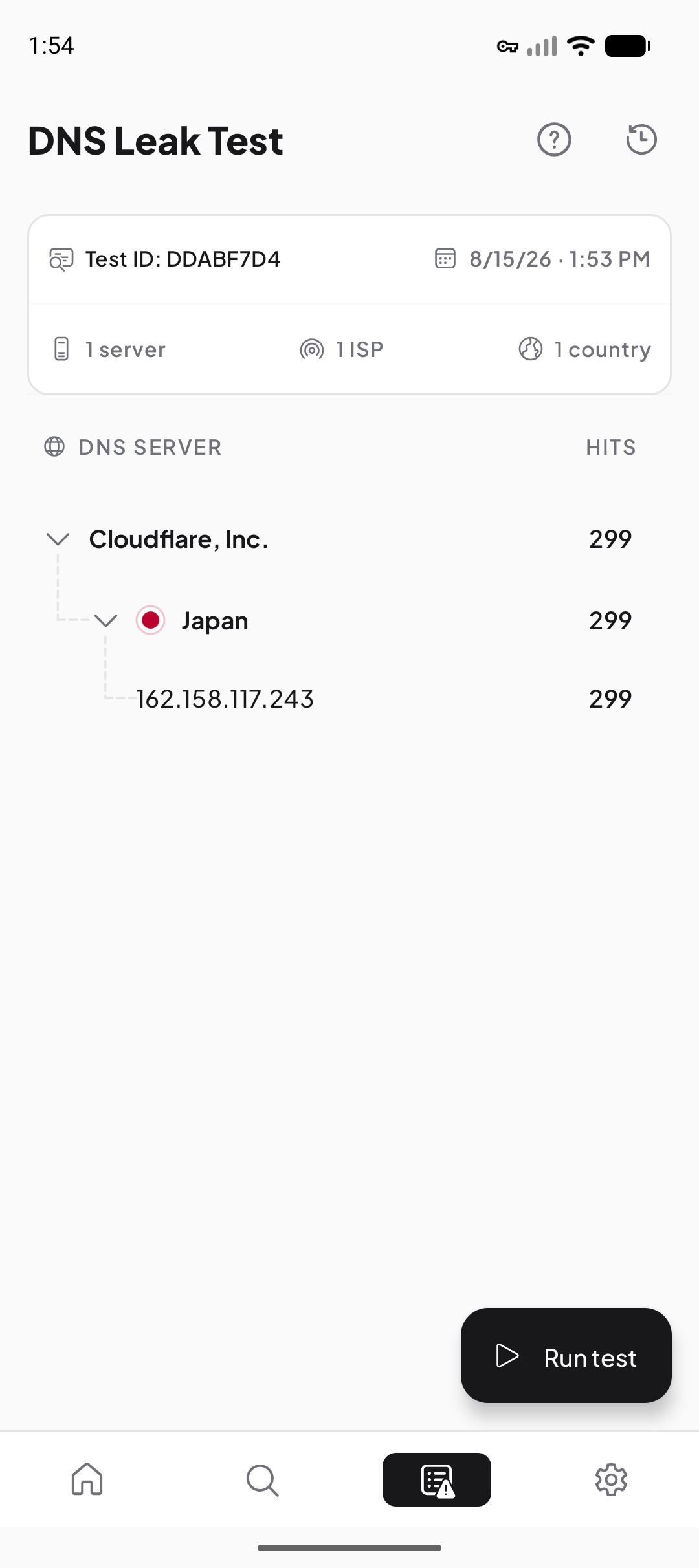
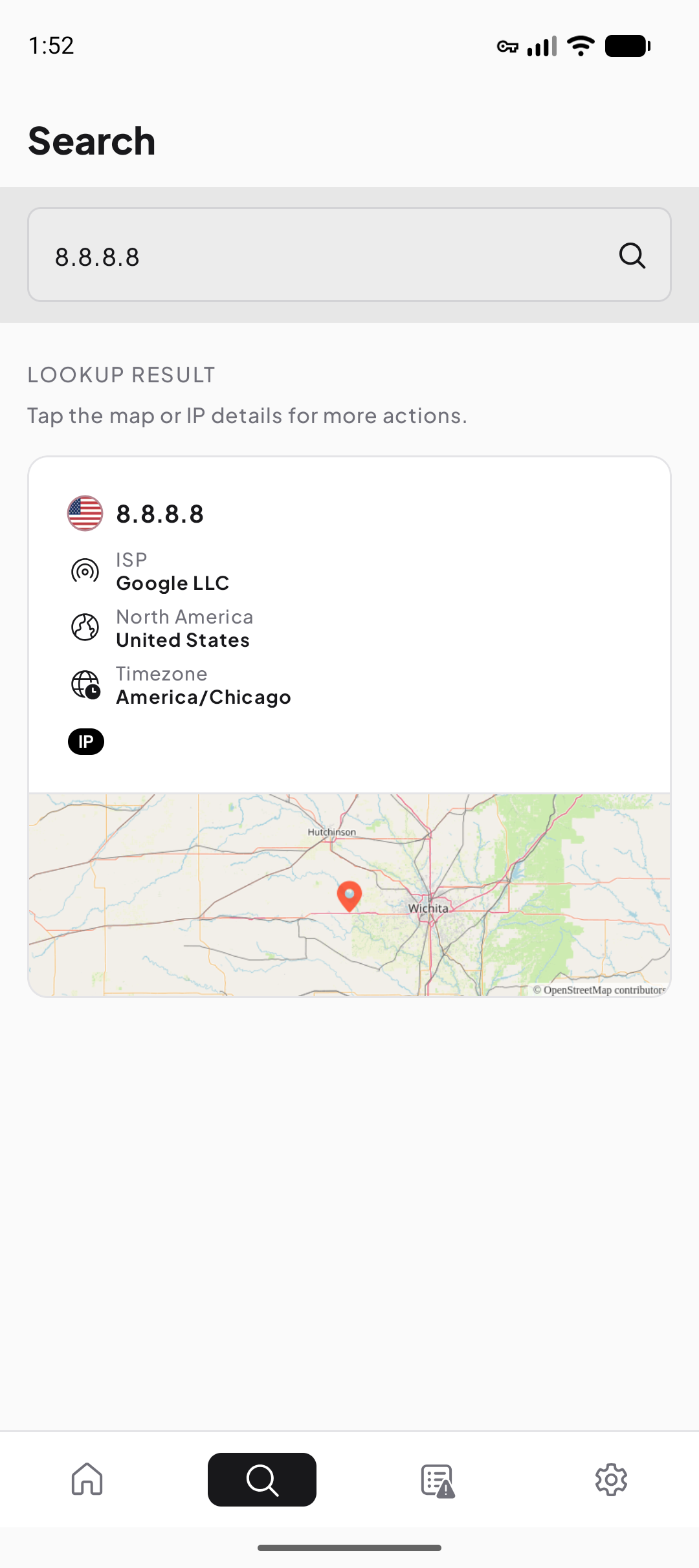
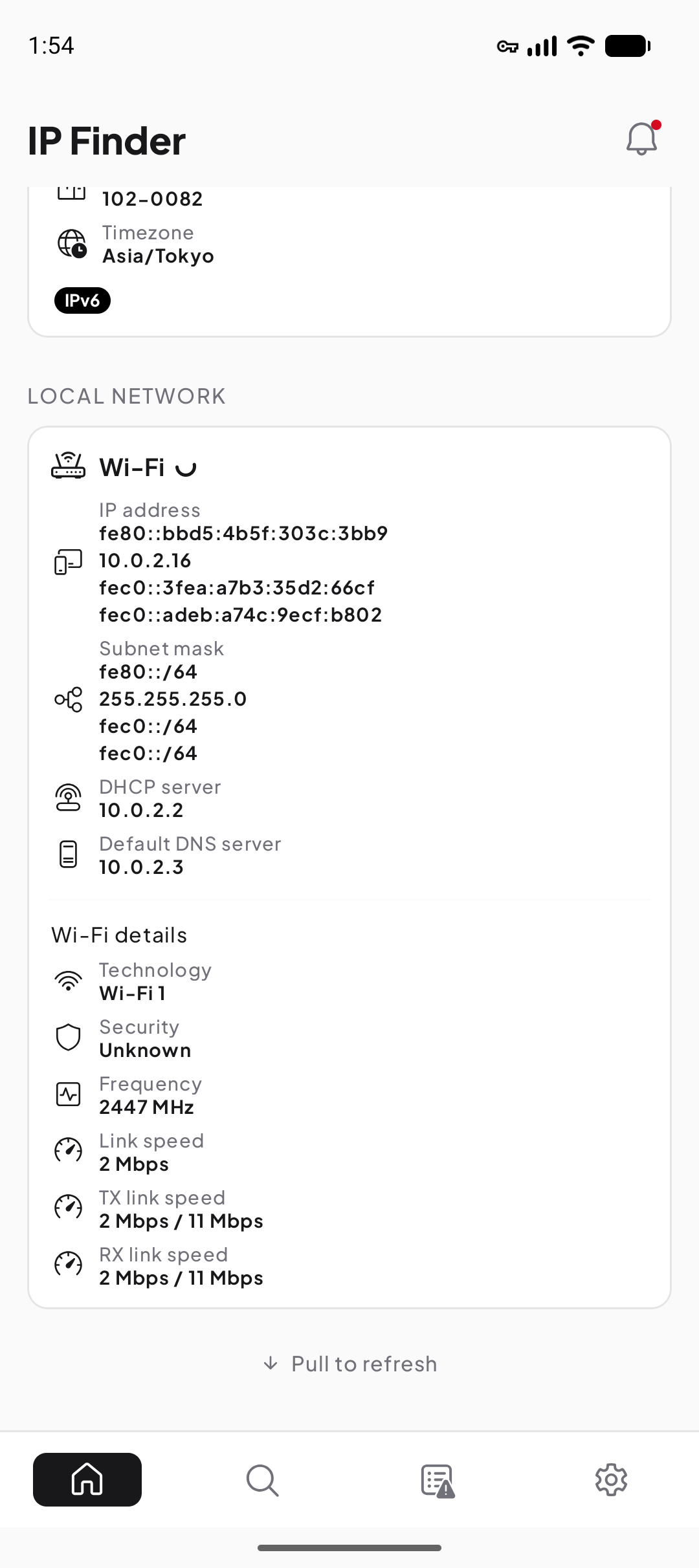
Two repeatable checks to start with
If you simply need to find the addresses on Android, follow the public-versus-private guide and label each value by scope. If you are checking a VPN, record public IP, network organization, and DNS observations before and after connecting, then compare the results with the VPN provider’s documented behavior.
Both workflows deliberately avoid a pass/fail badge. They leave you with observations you can reproduce and useful details to share with a network or VPN provider if the result remains unexpected.
What these results can—and cannot—tell you
- An IP lookup can describe an address block, network operator, and approximate area; it cannot identify a person or exact device position.
- A DNS test can show resolver infrastructure observed for test lookups; it cannot prove that every app used the same path.
- Ping, jitter, and packet-loss samples describe one target and time; they are not a universal grade for an internet plan.
- A changed public IP can confirm that the tested path changed; it cannot by itself certify VPN security or anonymity.
Take current network facts with you
IP Finder is available on Google Play for public IP, DNS, connection-quality, and local-network checks.
Common questions
Why did my public IP change?
Why is the IP in Android Wi-Fi settings different?
Does checking my IP reveal my exact location?
Sources
- IANA — Number Resources — Internet Assigned Numbers Authority
- RFC 1918 — Address Allocation for Private Internets — IETF
- RFC 1034 — Domain Names: Concepts and Facilities — IETF
- Android connectivity documentation — Android Developers